 Chat203
Never miss a visitor who asks for a person
When a visitor on your website asks to talk to a person, Chat203 rings like a phone on your computer and phone, with an Answer button, for as long as the visitor waits. These steps take about two minutes. Do them on each computer and phone you use, and ask each person who answers chats to do the same.
1. Turn on alerts
Sign in at app.chat203.com. A yellow bar at the top asks you to turn on alerts: click Turn on alerts, then Allow when your browser asks.

No yellow bar? Go to Team and click Turn on alerts on this device. Then click Send a test alert to see one.

2. Be Available
The switch at the top of Chat203 must say Available (green). Only then does the chat tell visitors to stay and wait for you; when you are Away, visitors are asked to leave a message instead. If two visitors in a row ring and nobody answers, Chat203 switches you to Away until you switch back.

3. When a visitor asks for a person
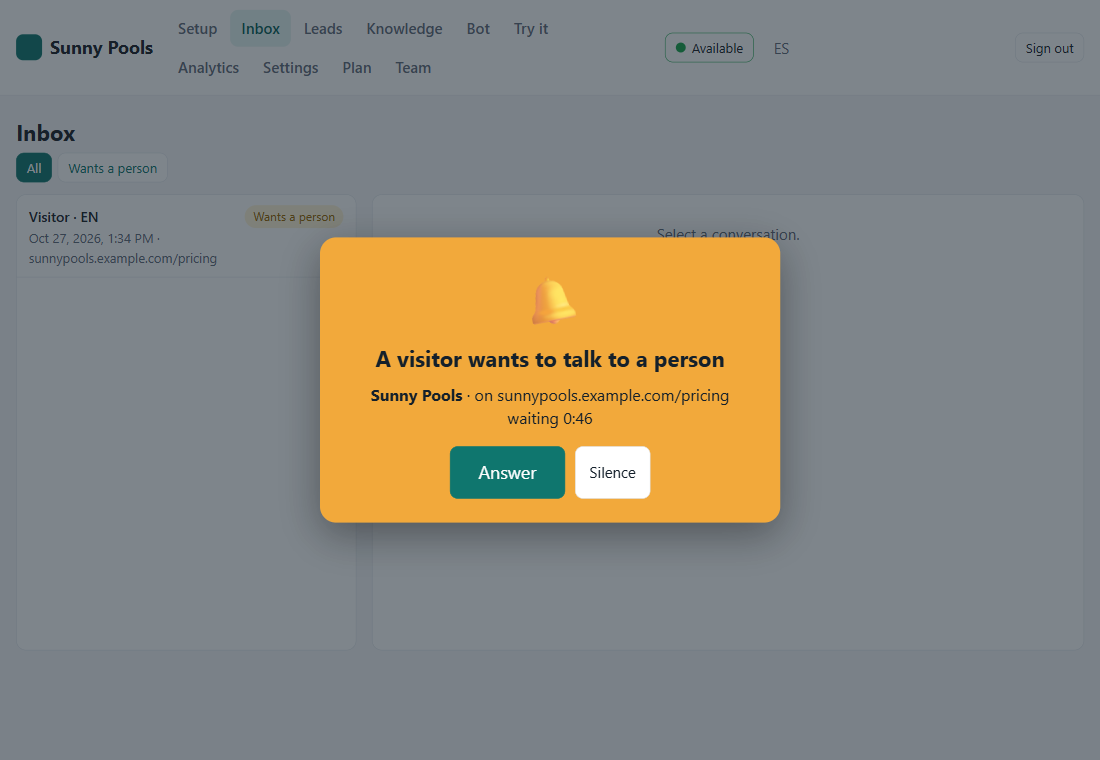
A pop-up appears at the corner of your screen with Answer and Not now, and rings again every few seconds while the visitor waits, even when Chat203 is behind other windows. If Chat203 is open in front of you, a large window appears instead. Answer opens the chat, already yours. When the wait ends, the ringing stops by itself.
4. Install Chat203 and start it with your device
Pick your device:
Install
In Chrome or Edge, with app.chat203.com open, click Install at the right end of the address bar (or the yellow bar's Install Chat203). Chat203 gets its own window and an icon on your desktop and taskbar.
Start it when Windows starts
Websites are not allowed to add themselves to your computer's startup, so this one step is yours:
- Press the Windows key + R.
- Type shell:startup and press Enter. A folder opens.
- Drag the Chat203 icon from your desktop into that folder.
Or from the browser: in Chrome go to chrome://apps, right-click Chat203 → Start app when you sign in; in Edge go to edge://apps, click ⋯ on Chat203 → Start automatically on device login.
No pop-up?
- Windows Settings → System → Notifications: notifications On, and Google Chrome (or Microsoft Edge, or Chat203) On.
- Turn off Do not disturb (bell icon by the clock).
- In the browser: click the icon left of the address bar on app.chat203.com → Notifications → Allow, then reload.
Install
In Chrome or Edge, with app.chat203.com open, click Install at the right end of the address bar. In Safari: File → Add to Dock.
Open it when your Mac starts
Apple menu → System Settings → General → Login Items → + → choose Chat203 (in Applications → Chrome Apps, or Applications for Safari).
No pop-up?
System Settings → Notifications → your browser (or Chat203) → Allow notifications, style Alerts. Turn off Focus (Control Center).
Install and turn on alerts
- Open app.chat203.com in Chrome and sign in.
- Menu ⋮ → Install app (or Add to Home screen).
- Open Chat203 from the new icon → Team → Turn on alerts on this device → Allow.
- Send a test alert.
Alerts arrive like any app's notifications, even with Chat203 closed. If they don't: phone Settings → Apps → Chrome → Notifications on, and battery saver off for Chrome.
Add to Home Screen first
- Open app.chat203.com in Safari (iOS 16.4 or later).
- Tap Share → Add to Home Screen.
- Open Chat203 from the new icon, sign in → Team → Turn on alerts on this device → Allow.
- Send a test alert.
On iPhone the alert has no buttons (Apple's rule): tap it to open the chat, then tap Answer. If alerts don't arrive: Settings → Notifications → Chat203 → Allow, and turn off Focus.