 Chat203
Set up your Chat203 bot
For business owners and admins. Everything here is in the app at app.chat203.com, and every page there has an ES / EN button to switch language. Visitors get the chat in their own language, English or Spanish.
1. The setup checklist
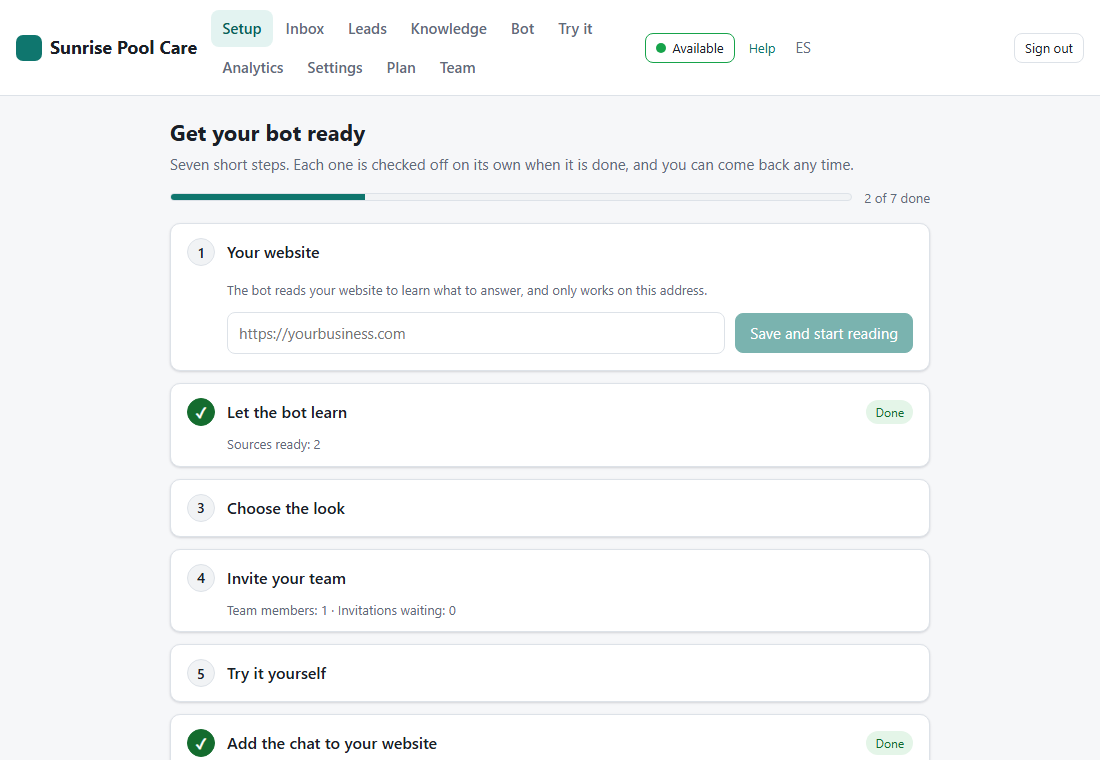
After you sign up, Setup walks you through seven steps: your website, let the bot learn, choose the look, invite your team, try it yourself, add the chat to your website, and be reachable when a visitor asks for a person. Each step ticks itself when it is done, so you can stop and come back any time.
2. Teach the bot what to answer
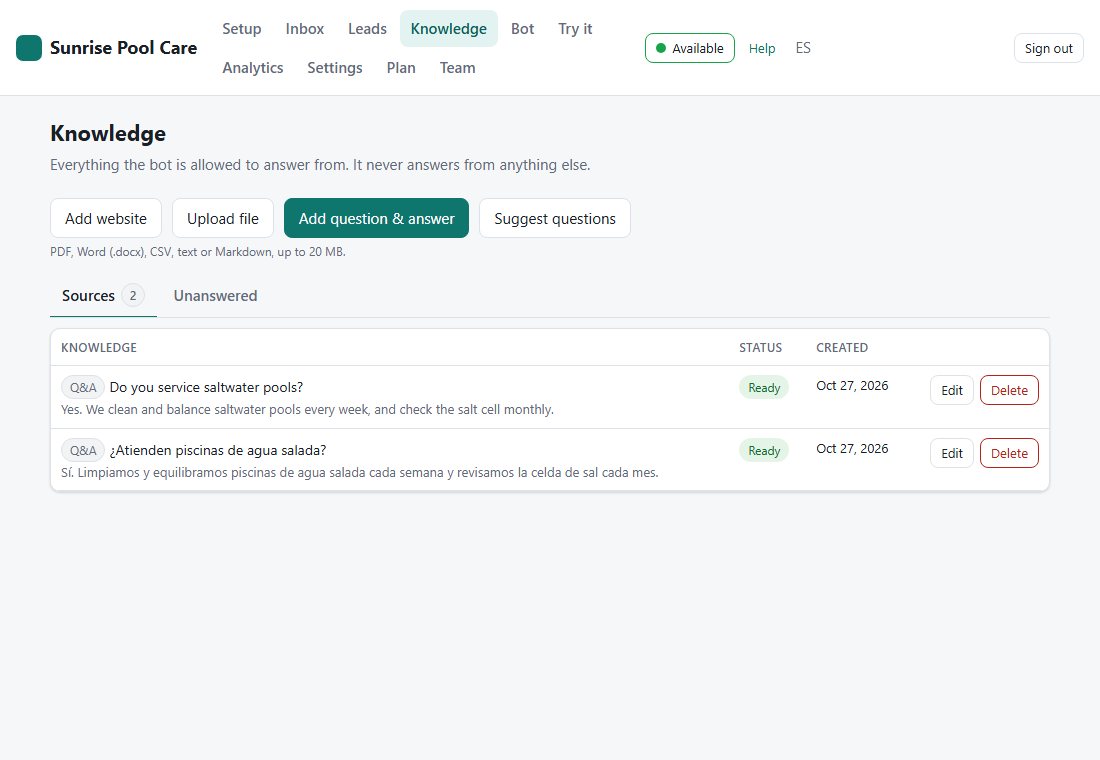
The bot answers only from what is on Knowledge, never from anything else. If something isn't there, it says so and offers a person.
- Add website: the bot reads your pages and reads them again on its own to stay up to date.
- Upload file: price lists, menus, policies (PDF, Word, CSV, text, up to 20 MB).
- Add question & answer: the exact answer you want for a question, in English, Spanish or both.
- Suggest questions: Chat203 lists the questions customers in your line of business usually ask. You write or approve each answer before it is saved.
- Unanswered: questions visitors asked that the bot could not answer. Add an answer and it is used from then on.
Saw a wrong answer in a conversation? In the Inbox, click Fix this answer under it. Then check the bot on Try it: it is your real bot, and those chats are not counted.
3. How the chat looks and what it says
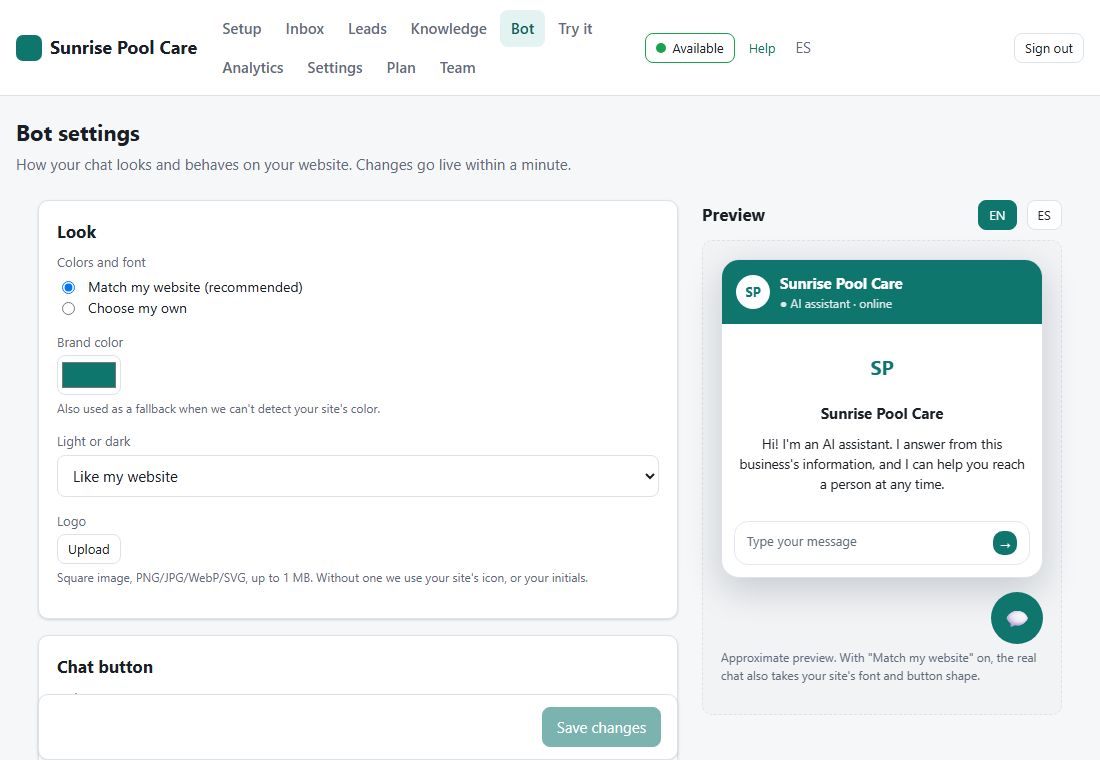
Bot has every setting for the chat on your website, with a live Preview in English and Spanish on the right. Click Save changes; your website shows the change within a minute.
- Look: Match my website (recommended) takes your site's colors and font; or choose your own color and logo.
- Chat button: icon, words, photo or logo; left or right corner; distance from the edge.
- Words: the assistant's name, the welcome message and suggested questions.
- Business hours: when "Talk to a person" connects to your team. Outside them, visitors leave their details.
- Talk to a person: what happens when a visitor asks for someone.
The chat always says it is an AI and always offers a person. You can reword that message in Settings, but not remove it.
4. Contact button and WhatsApp
On Bot, under WhatsApp, type your WhatsApp number (digits only, with the country code, e.g. 15615550142). The corner button then offers Chat with us and WhatsApp, and visitors pick one. WhatsApp opens with a first message already written, which the visitor can change before sending. Chat203 never sends anything for them.
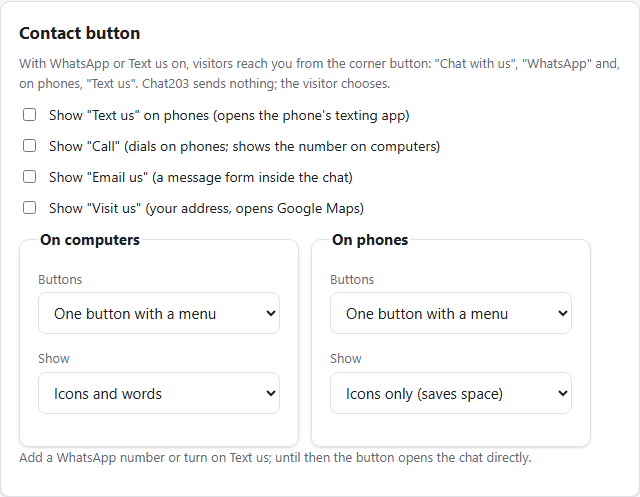
Under Contact button you can also show:
- Text us: on phones only. It opens the phone's texting app, using your WhatsApp number unless you type another.
- Call: dials on phones and shows the number on computers.
- Email us: a message form inside the chat. Your email address is never shown.
- Visit us: your address, which opens Google Maps.
For computers and for phones separately, choose One button with a menu or separate buttons, and words, icons or both. Phones default to icons only to save space.
What you receive on WhatsApp or by text. The first message already says who is writing (when they typed their name, email or phone in the chat), from which page of your website, what it is about (their first question) and the last messages of the chat, so you know the whole story before you reply. By text it is shorter: name, page, what it is about and the last 2 messages. The visitor sees it and can change it before sending.
Sales pitches and spam are blocked. Every message left with Email us or with the chat's contact form is checked by the AI. Offers to sell you something (SEO, websites, leads, "partnership opportunities") and spam are refused in front of the sender, who can rewrite it if they are really a customer. They never reach you and are not saved; Analytics shows how many were blocked this month. When the AI is not sure, the message goes through, so a real customer is never lost.
5. Business details
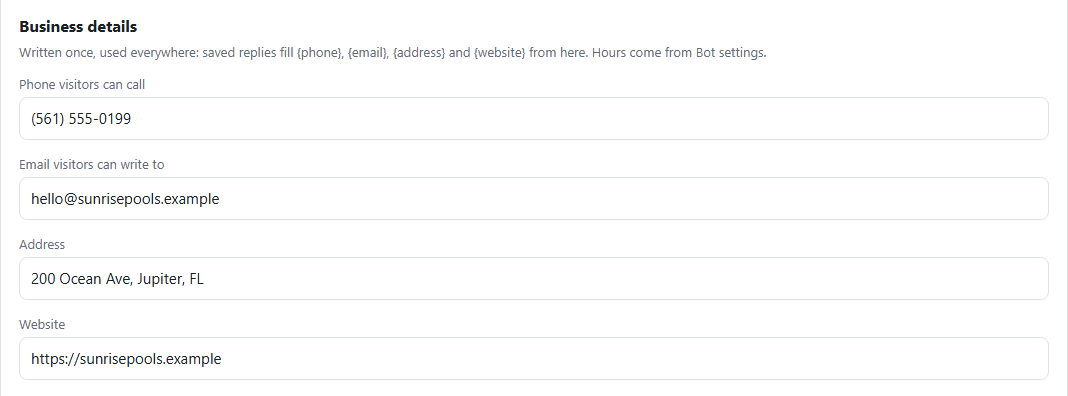
In Settings → Business details, write your phone, email, address and website once. Saved replies fill them in for you (step 7), so nobody types them again.
6. Answer visitors yourself
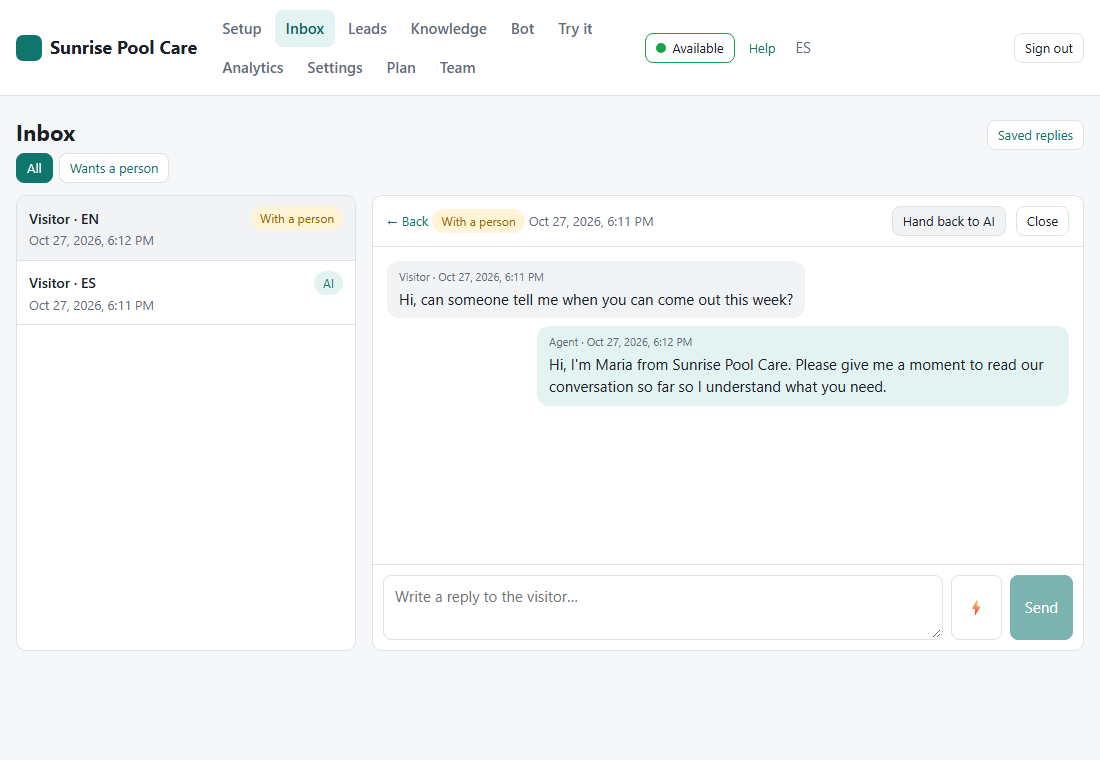
Every conversation is in the Inbox. Wants a person shows only visitors who asked for someone. Open one and click Take over: the bot stops, your greeting goes out by itself in the visitor's language, and you type your replies. Click Hand back to AI to let the bot continue, or Close when you are done. Each visitor's name, email and phone, and what they wanted, are listed on Leads.
7. Saved replies
Ready-made answers for the things you type over and over. Every business starts with eight, in English and Spanish: greeting, contact information, address, hours, "let me check", "are you still there?", closing, and "we don't offer that".
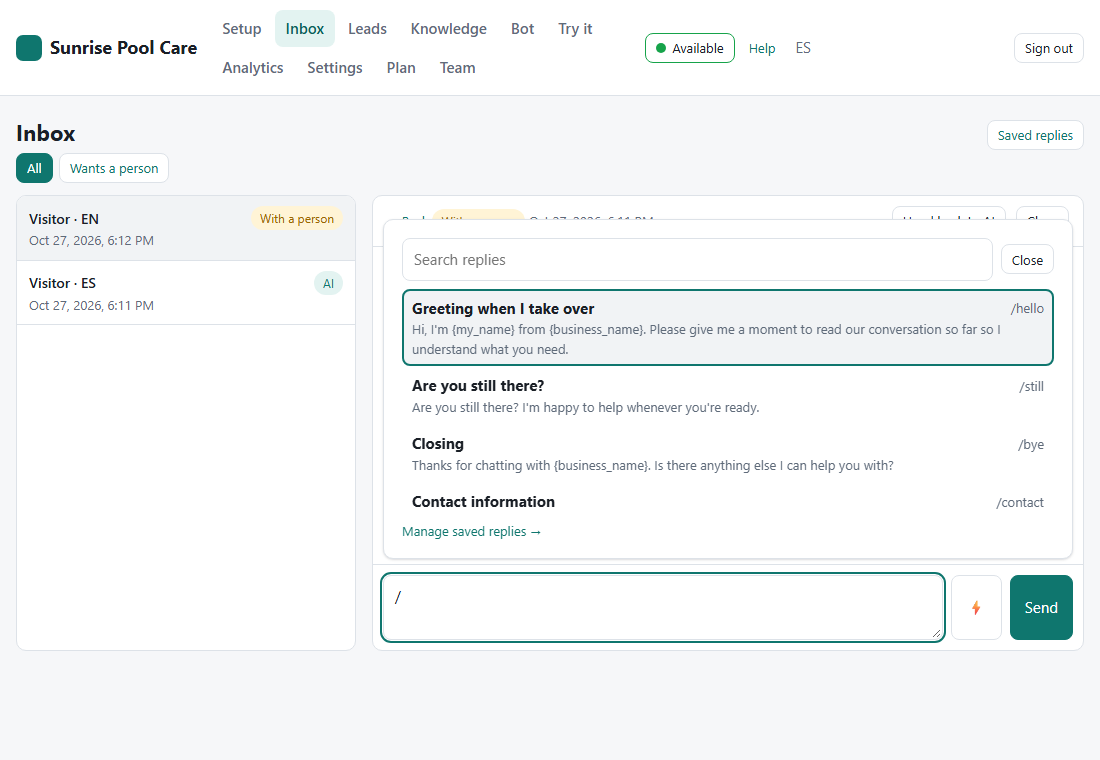
- While chatting, type
/in the reply box, or click ⚡. Keep typing to narrow the list (/hours), use the arrow keys, and press Enter. - The reply goes into the box in the visitor's language with your details filled in. It is not sent until you click Send, so you can change it first.
- If a detail is still blank (for example your website), Chat203 tells you which one.
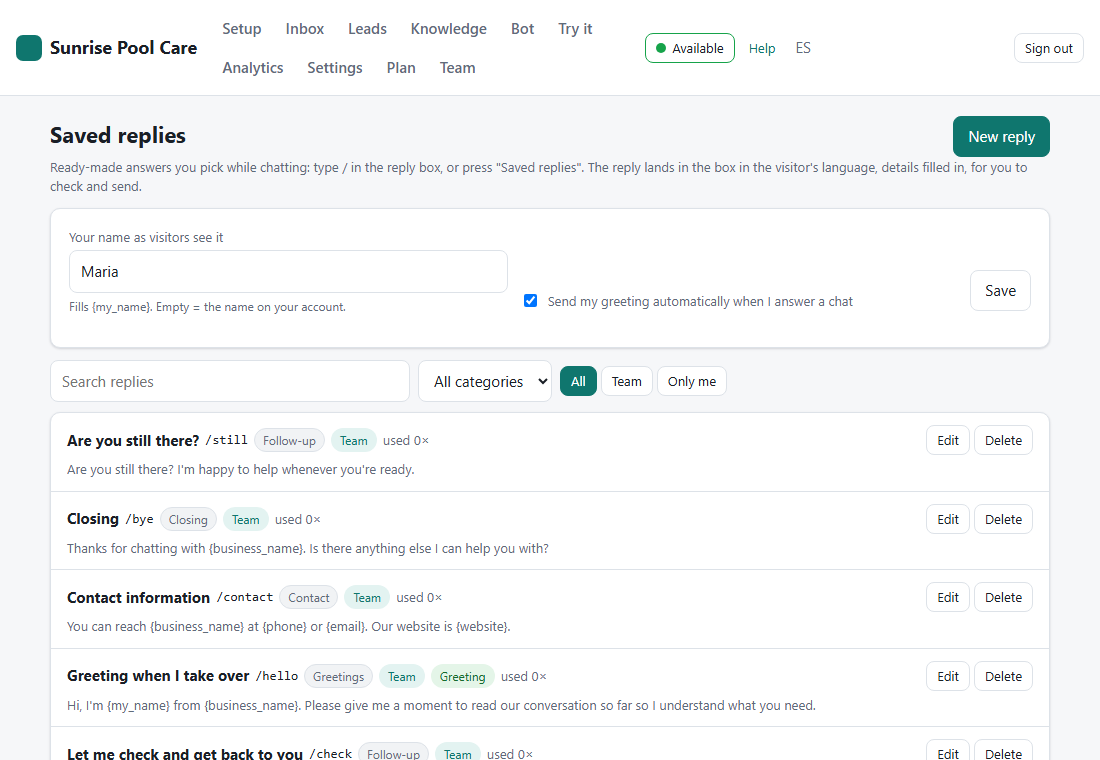
To change them, go to Inbox → Saved replies. Click New reply and give it a title, an optional keyword and category, and the text in English and Spanish. The buttons under the text insert details like {phone} or {my_name}. Owners and admins write team replies for everyone. Each person can also keep personal ones that only they see. At the top, set Your name as visitors see it, and choose whether your greeting goes out automatically when you take over a chat.
8. Alerts, team and putting the chat on your website
- Alerts on your computer and phone (install the app, the Answer pop-up, start it with your computer): Never miss a visitor who asks for a person.
- Team: invite the people who answer chats. Each one gets an email with the alerts guide.
- Put the chat on your website (Wix, WordPress, Squarespace, Shopify or any site; for you or your web developer): Install guide.
- Analytics: conversations, leads, questions the bot could not answer, and WhatsApp and Text us taps.